
码迷,mamicode.com
首页 > 其他好文 > 详细

Sitecore7.5 安装指南 -- 补充内容

时间:2014-12-02 00:26:12      阅读:155      评论:0      收藏:0      [点我收藏+]

标签:style   http   io   ar   os   使用   sp   for   strong   

1. 服务配置

如下包含其他信息和技术相关的服务器配置

更新文件夹的安全设置

更新文件夹的安全设置:

  1. 在Windows Explorer中,右键点击文件夹,选择Properties。
  2. 在Properties会话框中,点击Security标签。
  3. 在Group or user names字段中,选择一个用户或组,并且在Permissions for 字段中分配他们适当的权限。
  4. 在Security标签中,点击Advanced。
  5. 在Advanced Security Settings会话框中,选中Replace permission entries 选择框。

使安全标签可见

如果Security 标签不可见,这个一般发生在Windows XP Home升级到Professional:

  1. 在Windows Explorer中,点击Organize,Folder和search options。
  2. 在Folder Options对话中,点击View标签。

bubuko.com,布布扣

  1. 确保Use simple file sharing选择框是未选中。

如果这个账户在Security选项卡中不可见,你必须把它设置为可见。

设置账户可见

确保账户在Security选项卡中可见:

  1. 在Properties对话框中,点击Security选项卡。
  2. 在Security选项卡中,点击Add。
  3. 在Select Users,Computers,or Groups会话框中,在Form this location字段,确保local computer是选中的。
  4. 在Enter the object names to select字段中,输入账户名,点击Check Names。

或者,你可以点击Advanced,然后点击Find Now并且选择你想添加的账户。

2. 在Visual Studio中创建Web项目

        为已存在的Sitecore 站点创建成一个Visual Studio Web Application 项目:

  1. 在Visual Studio中,点击File菜单,然后点击New Project.
  2. 在New Project对话框中,在Project Type树中展开Visual C#,然后点击Web。
  3. 在Templates列表中,点击ASP.NET Web Application.
  4. 选择.NET Framework的版本,选择.NET Framework 4.
  5. 在Name 字段,输入项目的名称,例如MyWebSite。Visual studio 使用这个名字为.NET命名空间和装配名。
  6. 在Location字段中,输入Sitecore文档的目录,比如C:\inetpub\sitecore\MyWebSite\WebSite.
  7. 在Solution Name字段中,输入方案的名字,它一般是项目名称,例如MyWebSite。
  8. 选择Create Directory for solution选择框,然后点击OK。Visual Studio在Location目录的子目录中创建一个项目,然后打开项目。
  9. 在Solution Explorer中,右键点击References,然后点击Add Reference。
  10. 点击Browse选项卡,选择Sitecore.Kernel.dll文件,然后点击OK。
  11. 在Solution Explorer中,选择Sitecore.Kernel.dll文件,并且设置Copy Local属性为false。

在Visual Studio中编辑文件,你必须把他们包含在项目中,并且确保他们可见。

设置文件可见:
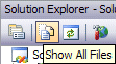
  1. 在Solution Explorer中,点击Show All Files。

bubuko.com,布布扣

  1. 必须包含你想编辑的文件。例如,右键点击XSL文件夹,然后点击Include in Project
  2. 最后,双击文件编辑它们。

Sitecore7.5 安装指南 -- 补充内容

标签:style   http   io   ar   os   使用   sp   for   strong   

原文地址:http://my.oschina.net/julycn/blog/351233

踩
(0)
赞
(0)
   
举报
评论 一句话评论(0)
登录后才能评论!
© 2014 mamicode.com 版权所有  联系我们:gaon5@hotmail.com
迷上了代码!